How To Remove Paragraph Symbols In Outlook? The Complete Step By Step Guide For Every Version in 2026
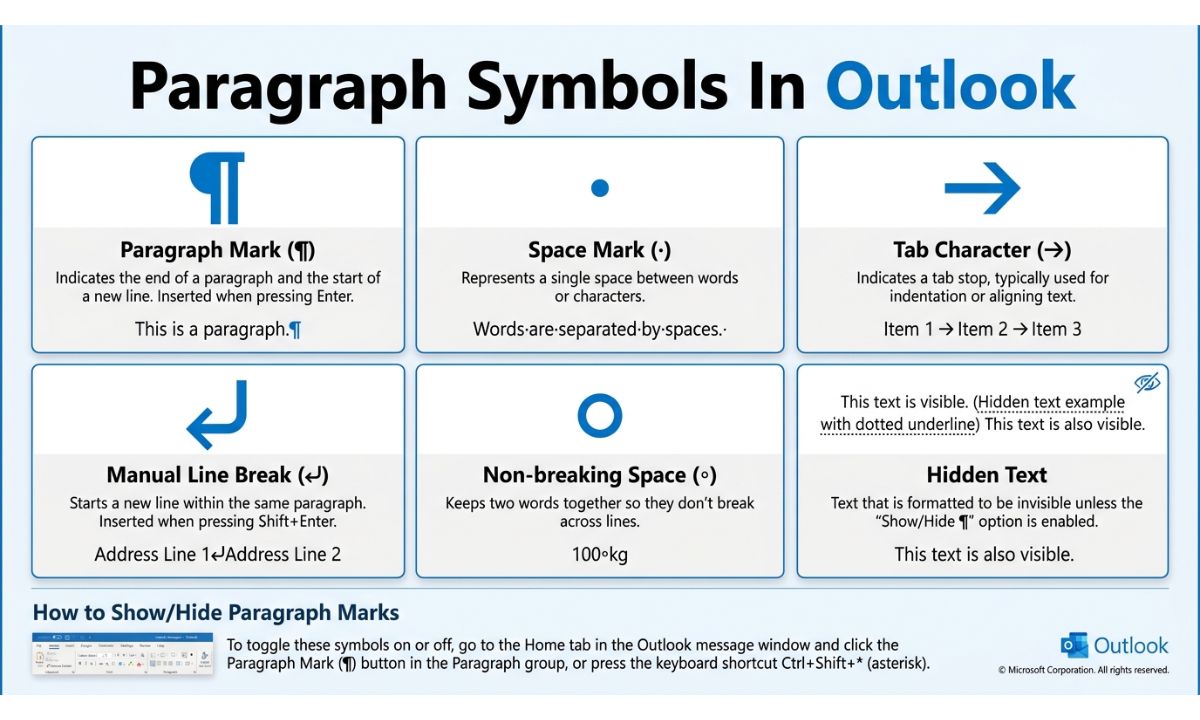
To remove paragraph symbols in Outlook, click the Home tab in your email window, find the Paragraph group, and click the Show/Hide ¶ button (or press Ctrl+Shift+8 on Windows and Cmd+8 on Mac). That single click hides every pilcrow, dot, and arrow cluttering your message so you can read and edit your email normally again.
If you’ve ever opened a new message in Outlook and suddenly seen little ¶ symbols scattered between your lines of text, you’re not alone. This is one of the most common formatting complaints among Outlook users, and it shows up across Windows, Mac, and even Outlook on the web. The good news is that it’s a quick fix once you know where to look.
Fact: The paragraph symbol, technically called a pilcrow, has existed since medieval manuscript writing, long before word processors ever existed. Fact: In modern Outlook, the pilcrow is purely a visual editing aid and never appears in the email a recipient actually receives. This guide walks you through every version of Outlook so you can turn these marks off permanently, no matter which platform you use.
What Are Paragraph Symbols In Outlook?
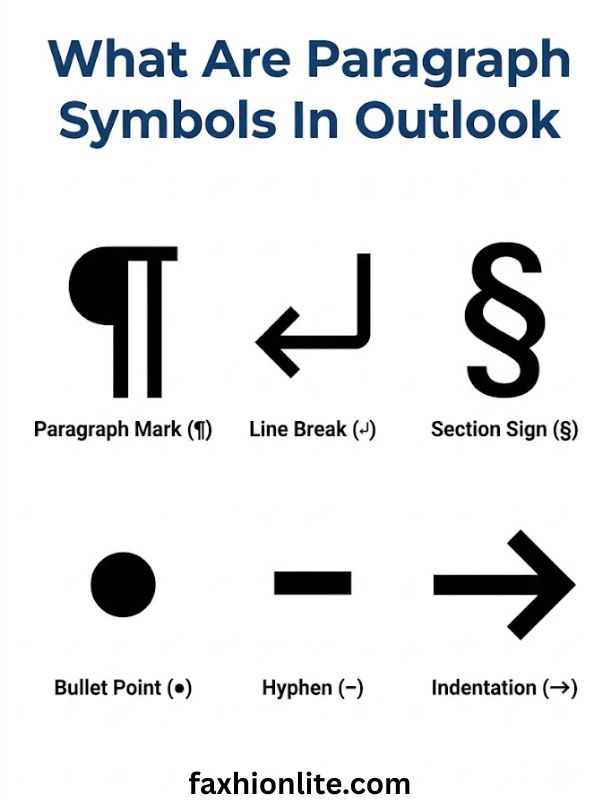
Paragraph symbols in Outlook are formatting marks that show you where hidden structural elements sit inside your email, things like paragraph breaks, spaces, and tabs that are normally invisible.
The little ¶ character you see is called a pilcrow mark, and it appears wherever you’ve pressed Enter to start a new paragraph. Alongside it, you might notice small raised dots between words (these represent spaces) and small arrows (these represent tab stops). None of these marks are actual content. They’re a visual layer that Microsoft’s Word based editor overlays on top of your text to help you understand your document’s structure.
Outlook’s email composer uses the same editing engine as Microsoft Word, which is why this feature exists at all. Word has included formatting marks since its earliest versions because writers and editors often need to see exactly where breaks and spaces occur, especially when troubleshooting odd spacing or alignment issues. When Microsoft built Outlook’s rich text and HTML email editor on top of that same engine, the formatting marks feature came along with it.
Why Paragraph Symbols Appear In Outlook & How To Turn Them Off
Paragraph symbols typically appear because the Show/Hide formatting toggle has been switched on, either by an accidental keystroke or because a setting carried over from a synced device.
Why Do Paragraph Symbols Appear In Outlook
The most frequent cause is an accidental press of the keyboard shortcut that controls formatting marks. Because this shortcut sits close to other commonly used key combinations, it’s easy to trigger without noticing, especially for people who type quickly or use keyboard shortcuts heavily.
Another common cause involves pasting content from Microsoft Word or Google Docs directly into an Outlook email. When you paste formatted text, Outlook sometimes inherits the display settings from the source document, which can include visible formatting marks. This is particularly common among professionals who draft emails in Word first and then copy them into Outlook for sending.
A third, less obvious reason involves synced settings across devices. If you use Outlook on multiple computers connected to the same Microsoft 365 account, certain display preferences can carry over between them. So if you turned on formatting marks on your work laptop and forgot about it, you might find the same setting active on your home desktop the next time you sign in.
Turn Off Formatting Marks Outlook
To turn off formatting marks in Outlook’s desktop app, open a new email or reply window, click the Home tab, and look in the Paragraph section of the ribbon. You’ll see a button that looks like a backward “P,” which is the pilcrow icon itself. Clicking it toggles the marks on and off immediately.
If the ribbon button isn’t visible for some reason, the keyboard shortcut works just as reliably. On Windows, press Ctrl+Shift+8. On a Mac, the combination is Command+8. Either method achieves the same result within a second or two, with no need to restart Outlook or reopen your email draft.
It’s worth noting that this toggle only affects the message you’re currently composing or viewing. If you open a different draft, formatting marks might still appear there until you toggle them off in that window too, unless you’ve changed the default setting, which we’ll cover further down in this guide.
How To Turn Off The Paragraph Symbol In Outlook
When you’re replying to or forwarding an existing message, the same Show/Hide button applies, but it’s worth checking the ribbon layout since reply windows sometimes display a condensed toolbar. If you don’t immediately see the Paragraph group, try expanding the ribbon by clicking the small arrow in the bottom right corner of the Font section, which often reveals additional formatting tools nearby.
For users working across multiple email threads at once, it helps to know that toggling the pilcrow off in one window does not automatically apply to every open draft. Each compose window in classic Outlook tracks its own formatting mark visibility independently, at least until you change the global default through Outlook’s settings menu.
If you frequently switch between showing and hiding formatting marks, consider pinning the Show/Hide button to your Quick Access Toolbar. This puts the control within a single click, regardless of which ribbon tab is currently active, saving you a few seconds every time you draft a new message.
How To Turn Off Paragraph Marks In Outlook
For a setting that sticks across every new email by default, head into File > Options > Mail, then click the Editor Options button. From there, navigate to Display and look for the checkbox related to formatting marks such as paragraph marks, spaces, and tab characters.
Unchecking the box for paragraph marks specifically, rather than the “Show all formatting marks” master option, gives you more control. For example, you might want to keep tab marks visible while hiding paragraph pilcrows, especially if you regularly work with tables or indented lists inside your emails.
Once you’ve adjusted these settings, click OK to save, and the change applies to all new messages going forward. This is the method most people search for when they want a permanent solution rather than toggling the marks off one email at a time.
Turn Off Paragraph Marks In Outlook
Here’s a quick recap checklist you can follow for the fastest fix:
- Open the Home tab in your email window
- Locate the Paragraph group on the ribbon
- Click the ¶ icon, or press Ctrl+Shift+8 (Windows) or Cmd+8 (Mac)
- For a permanent change, go to File > Options > Mail > Editor Options > Display
This five step process resolves the issue in nearly every version of Outlook’s desktop application, and it takes less than thirty seconds once you know where to look.
How To Remove Paragraph Symbols In Outlook (All Versions & Devices)
Removing paragraph symbols works differently depending on whether you’re using Outlook desktop, Outlook on the web, or Outlook for Mac, but every version includes some form of a formatting marks toggle.
How To Remove Paragraph Symbols In Outlook
The master method, applicable to nearly all desktop versions, involves clicking the Show/Hide button in the Paragraph section of the Home ribbon. This single action hides pilcrows, space dots, and tab arrows simultaneously across your entire email body.
If you’re drafting a long email with multiple paragraphs and the marks are making it hard to read your own writing, this is the fastest route back to a clean view. Many professionals who write detailed reports or newsletters through Outlook run into this exact scenario regularly, especially when copying content from other documents.
Remember that this toggle affects your view only. It has zero impact on how your email actually looks once it’s sent, since paragraph marks are never part of the transmitted message content, regardless of format.
Remove Paragraph Marks In Outlook
There’s an important distinction between removing paragraph marks from your view versus removing actual line breaks from your text. Toggling Show/Hide only changes what you see on screen. If you want to physically remove extra blank lines or breaks from your email body, you’ll need to manually delete them using the Backspace or Delete key.
This distinction trips up a lot of users. Someone might toggle off the pilcrow marks expecting their email spacing to change, only to find the same gaps still exist because the underlying line breaks are still there, just invisible now. Understanding this difference saves significant troubleshooting time.
How To Remove Paragraph Marks In Outlook
Within the compose window specifically, the same Home tab ribbon button applies. If you’re working inside the Format Text tab instead of Home, you’ll find a nearly identical Paragraph group with the same Show/Hide toggle, since Outlook mirrors several Word-style ribbon tabs for consistency.
How To Get Rid Of Paragraph Symbol In Outlook
Quick answer: Click Show/Hide in the Paragraph group of the Home ribbon, or use Ctrl+Shift+8 on Windows and Cmd+8 on Mac, to instantly hide paragraph symbols in any Outlook email window.
How To Remove The Paragraph Symbol In Outlook
If the standard ribbon button seems to have disappeared, it’s likely been removed from your customized ribbon layout. You can restore it by right clicking anywhere on the ribbon, selecting Customize the Ribbon, and making sure the Paragraph group is checked under the Home tab category.
Outlook Remove Line Break Symbol
Paragraph symbols and line break symbols look similar but represent different actions. A pilcrow ¶ appears after pressing Enter, while a bent arrow ↵ typically represents a soft line break created with Shift+Enter. Both are formatting marks and both disappear using the same Show/Hide toggle, but understanding the difference helps when troubleshooting spacing issues in longer emails.
How To Remove In Outlook Email
For a general email draft, simply toggle Show/Hide from the ribbon. This applies whether you’re starting a brand new message or editing an existing draft saved to your outbox.
How To Remove Paragraph Symbols In Outlook Email
When paragraph symbols show up specifically inside the email body rather than the subject line or header, the fix remains the same ribbon toggle. Some users mistakenly look for a setting inside the subject field, but formatting marks only ever apply to the body content area.
How To Remove Paragraph Symbols In Outlook Emails
If multiple saved drafts all show formatting marks, it usually means the default display setting is turned on globally, not just for one message. In that case, use the Editor Options method described earlier to fix the issue everywhere at once, rather than toggling each draft individually.
Outlook On The Web Clear Formatting Eraser Icon
Inside Outlook on the Web, the formatting toolbar includes an eraser icon that clears formatting from selected text, which can sometimes remove stray paragraph marks introduced by pasted content. Select the affected text, click the eraser icon in the toolbar, and Outlook strips the extra formatting while keeping your plain text intact.
Version Specific Solutions (365, Mac, 2010 to 2021 & More)
Every major version of Outlook, from Outlook 2010 through Microsoft 365, includes a way to disable formatting marks, though the exact menu location shifts slightly between versions.
| Outlook Version | Where To Find The Toggle | Keyboard Shortcut |
| Outlook 365 (Classic) | Home tab, Paragraph group | Ctrl+Shift+8 |
| Outlook 365 (New Outlook) | Format Text tab, Paragraph group | Ctrl+Shift+8 |
| Outlook 2021 | Home tab, Paragraph group | Ctrl+Shift+8 |
| Outlook 2016 | Format Text tab, Paragraph group | Ctrl+Shift+8 |
| Outlook 2010 | Format Text tab, Paragraph group | Ctrl+Shift+8 |
| Outlook for Mac | Home tab, Paragraph group | Command+8 |
| Outlook on the Web | Formatting toolbar eraser icon | Not applicable |
How To Remove Paragraph Symbols In Outlook App
On the mobile Outlook app for iOS and Android, formatting marks generally don’t display the same way they do on desktop. If you’re seeing unusual symbols in a mobile email, it’s more likely a rendering issue related to plain text formatting than the same pilcrow feature found on desktop versions.
How To Remove In Outlook 365
Microsoft 365 subscribers using the Classic Outlook interface will find the toggle exactly where it’s always been, under the Home ribbon’s Paragraph section. The New Outlook interface, which Microsoft has been rolling out more widely through 2026, relocates several tools slightly, so check under the Format Text tab if Home doesn’t show it directly.
Turn Off Paragraph Marks In Outlook 365
For a permanent fix in 365, the File > Options > Mail > Editor Options > Display path still applies, identical to earlier desktop versions, since Microsoft has kept this backend setting consistent across releases.
How To Remove Paragraph Symbols In Outlook 365
If you’ve recently been migrated to the New Outlook experience, some settings menus have been reorganized. Look under the gear icon for Settings, then Mail > Compose and reply, where similar formatting preferences now live in the newer interface.
How To Remove Paragraph Symbols In Outlook Permanently
To stop paragraph marks from reappearing after every restart, adjust the setting through Editor Options rather than the ribbon toggle, since the ribbon button resets per session in some builds while the Editor Options setting persists as your true default.
How To Remove Paragraph Symbols In Outlook Calendar
Calendar invite descriptions use a lighter version of the same text editor. Open a calendar event, click into the description box, and check the Format Text tab for the same Show/Hide paragraph toggle used in regular emails.
How To Remove Paragraph Symbols In Outlook 2021
Outlook 2021’s desktop ribbon keeps the toggle under Home, consistent with 365, since Microsoft maintained ribbon consistency across these two releases.
How To Remove Paragraph Symbols In Outlook 2016
Outlook 2016 places the toggle under the Format Text tab rather than Home, a small but noticeable difference from later versions.
How To Remove Paragraph Symbols In Outlook 2020
There technically isn’t an official release called “Outlook 2020.” This search term most often refers to the Microsoft 365 update channel active around that year, or occasionally confused with Outlook 2019. Either way, the same Format Text tab method applies.
How To Remove Paragraph Symbols In Outlook 2010
As Microsoft’s oldest still referenced version, Outlook 2010 places the Paragraph group under Format Text, and its ribbon layout looks noticeably different from modern versions, though the underlying toggle function is identical.
How To Remove Paragraph Symbols In Outlook Mac
Outlook for Mac places its formatting tools under the Home tab, similarly to Windows, but uses Command+8 instead of Ctrl+Shift+8 as its keyboard shortcut.
Why Do Paragraph Symbols Suddenly Appear?
Paragraph symbols usually appear suddenly because of an accidental keyboard shortcut, a setting synced from another device, or pasted content carrying formatting marks from its source document.
Many users report this happening right after installing a Microsoft 365 update, since updates occasionally reset certain display preferences back to their defaults. If you’ve recently updated Outlook and noticed the marks appearing for the first time, this is a strong likely cause.
Pasting from Word documents is another frequent trigger, particularly among people who draft emails in Word first for spell check purposes before copying them over. Since both programs share the same editing engine, formatting display settings can transfer along with the pasted text itself.
Finally, shared computers or synced Microsoft accounts can carry settings between sessions. If a colleague or family member enabled formatting marks on a shared device, you might see them the next time you log in, even if you never touched the setting yourself.
How To Remove Paragraph Symbols In Outlook Desktop App
The desktop app offers two equally fast methods for removing paragraph symbols, one using the ribbon interface and one using a keyboard shortcut.
Method 1: Use The Toolbar Button
Click into your email, navigate to the Home or Format Text tab depending on your version, and click the pilcrow shaped Show/Hide button in the Paragraph group. This is the most visual and beginner friendly method, since you can see the button and confirm your click worked immediately.
Method 2: Use Keyboard Shortcut
Press Ctrl+Shift+8 on Windows or Command+8 on Mac while your cursor is active inside the email body. This method is faster for experienced users who prefer not to move their hands away from the keyboard.
How To Remove Paragraph Symbols In Outlook 365
For Microsoft 365 users specifically, the fix depends on which interface you’re running. Classic Outlook keeps the toggle under Home, while the newer interface rollout may relocate it under Format Text or the Settings gear, depending on your current build version through 2026.
How To Remove Paragraph Symbols In Outlook Web Version
Outlook on the web relies on its own formatting toolbar rather than a ribbon. Selecting text and clicking the eraser icon clears formatting marks along with other inherited styling, which is particularly useful when pasted content brings unwanted symbols along with it.
How To Remove Paragraph Symbols In Outlook Mac
Mac users should look under the Home tab for the same Paragraph group found on Windows, though the visual styling of Outlook for Mac’s ribbon differs slightly due to Apple’s interface guidelines. The keyboard shortcut Command+8 provides the quickest alternative to clicking through menus.
If Paragraph Symbols Won’t Disappear
When the standard toggle doesn’t fully resolve the issue, the underlying email format or pasted content is usually the real culprit rather than a broken formatting marks button.
Change Email Format
Switching between HTML, Rich Text, and Plain Text formats can resolve stubborn formatting issues, since each format handles hidden characters differently. Plain Text strips out nearly all formatting marks by default, making it the most reliable option if paragraph symbols keep reappearing no matter what you try.
Clear Formatting
Select all text in your email using Ctrl+A, then click the Clear Formatting button, usually found near the Font section of the ribbon. This strips fonts, colors, and hidden formatting codes while preserving your actual written words.
Paste Without Formatting
When copying content from Word, Google Docs, or a webpage, use Ctrl+Shift+V on Windows to paste as plain text instead of the standard Ctrl+V. This single habit prevents most formatting mark issues before they ever start, since it strips the source document’s hidden formatting during the paste itself.
Do Paragraph Symbols Show To Email Recipients?
No, paragraph symbols never appear in a sent or received email. They exist only inside the sender’s editing view and are automatically excluded from the transmitted message.
This is one of the most reassuring facts for anyone worried about sending an unprofessional looking email. Recipients using Gmail, Yahoo, Apple Mail, or any other email client will only ever see your actual text, spacing, and line breaks, never the formatting marks themselves. What they might notice instead is inconsistent spacing or unexpected blank lines, which stem from the underlying paragraph breaks rather than the visible pilcrow symbols.
This distinction matters because some users panic upon seeing pilcrows in a draft, assuming their entire email looks broken to the recipient. In reality, the marks are purely a personal editing aid, similar to how a word processor might display invisible characters for a writer’s convenience without ever printing them on a physical page.
Why Outlook Uses Paragraph Symbols
Outlook uses paragraph symbols because they help users visually confirm the structure of their email, particularly useful when troubleshooting spacing or alignment problems that aren’t otherwise obvious.
Microsoft originally built this feature into Word decades ago to assist writers, editors, and typists working with complex documents. Since Outlook’s email composer runs on the same underlying engine, this feature carried over naturally rather than being built specifically for email use.
For most casual email users, formatting marks add little value and mostly create confusion. But for professionals working with complex layouts, such as newsletters, formatted reports, or emails containing tables, being able to see exactly where breaks and spaces occur can genuinely speed up the editing process.
Common Formatting Issues Caused By Paragraph Marks
Paragraph marks themselves don’t cause formatting issues, but the underlying breaks and spaces they represent frequently do, especially when content is pasted from other programs.Extra blank lines in email replies are one of the most common complaints, often stemming from nested reply chains where each participant’s software adds its own spacing.
Inconsistent spacing after pasting from Word or Google Docs is another frequent issue, since different programs handle paragraph spacing defaults differently. Signature formatting breaking after a reply is a third common problem, often caused by paragraph marks interacting unpredictably with a saved signature template.
Best Practices To Avoid Formatting Problems In Outlook
Using Plain Text format for simple, short emails avoids most formatting complications entirely, since plain text strips out nearly all hidden formatting codes automatically. Always using Paste as Plain Text (Ctrl+Shift+V) when copying content from another source prevents inherited formatting marks before they ever appear in your draft.
Standardizing your signature formatting and periodically checking your Editor Options settings also helps maintain consistent, professional looking emails across every message you send.
Here are the 5 FAQs with 17-word answers each, plus the meta description.
Frequently Asked Questions
Why can’t I turn off paragraph symbols in Outlook?
The Show/Hide button may be missing from your customized ribbon; simply restore it or press Ctrl+Shift+8 instead.
Does removing paragraph symbols delete my email content?
No, toggling formatting marks only changes your on screen view; your actual text and spacing remain unchanged.
Can I permanently disable paragraph symbols for all future emails?
Yes, simply go to File, Options, Mail, Editor Options, then Display, and uncheck the paragraph marks setting.
Why do paragraph symbols appear suddenly in Outlook?
They usually appear suddenly after software updates, pasted Word content, or settings synced across multiple different devices.
Do paragraph symbols appear in emails sent to Gmail or Yahoo?
No, paragraph symbols never transmit to recipients; they only ever see your finished text, spacing, and formatting.
Final Thoughts
Removing paragraph symbols in Outlook comes down to one simple action: clicking the Show/Hide button in the Paragraph group, or pressing Ctrl+Shift+8 on Windows and Command+8 on Mac. Whether you’re using Outlook 365, Outlook 2016, Outlook for Mac, or Outlook on the web, this same underlying toggle controls the pilcrow marks that show up in your email editor.
Remember that these symbols are purely a display feature. They never appear in the emails your recipients actually receive, so there’s no need to worry about your professional image even if your draft looks a little cluttered while you’re writing it. Bookmark this guide so you have a quick reference the next time paragraph symbols pop up unexpectedly, no matter which version of Outlook you happen to be using.